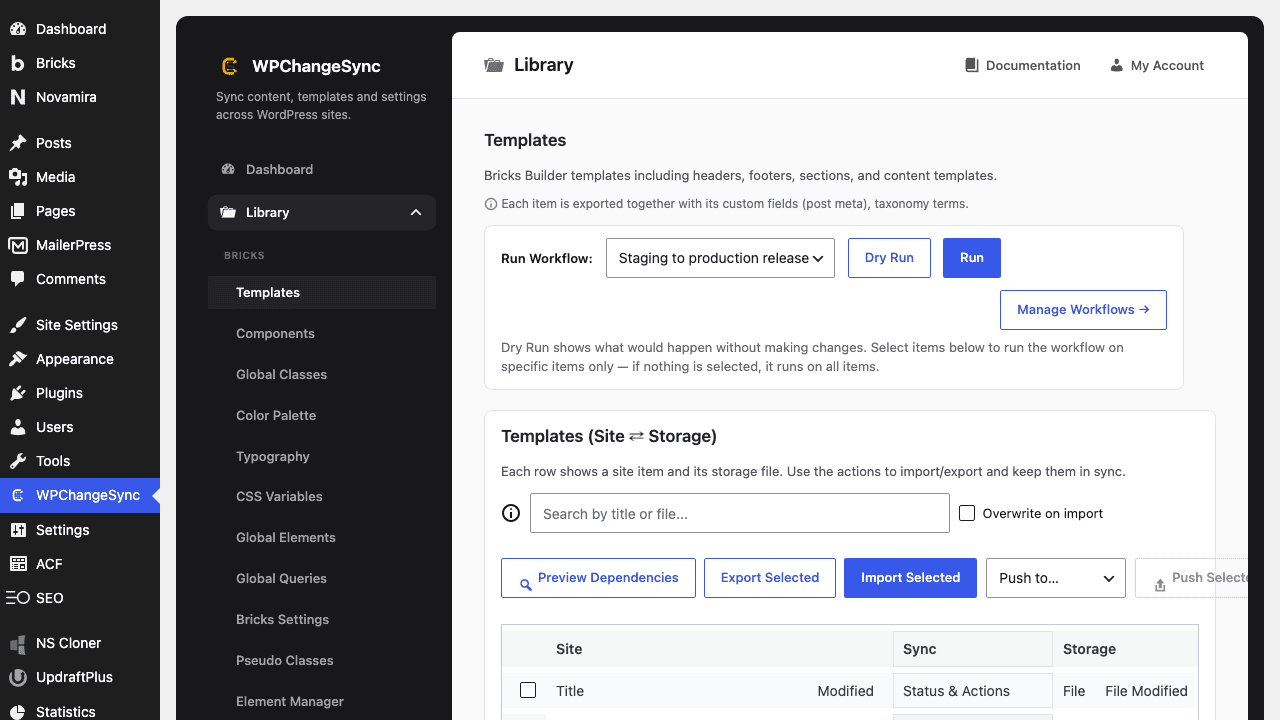
Use template snapshots to recover from bad imports, accidental edits, or failed releases.
Updated 5 June 2026·Task guide
Outcome
You can inspect template version history, save manual snapshots, restore a known-good version, and understand when WPChangeSync creates automatic versions.
Video walkthrough
▶
Video walkthrough coming soon.
The YouTube embed will appear here.
Risk level
Medium. Restores can replace current template state. Save current state before rollback.
Before you start
Template versioning is enabled in Config -> General.
You know the template ID or can find the template in the Library.
You have not cleared versions for the affected template.
Steps
Save a version before risky work Create a manual snapshot before large template edits or imports.
Review version history Open template versions from the UI or list them with WP-CLI.
Restore the right version Restore the selected version; WPChangeSync saves the current state before restoring.
Verify in Bricks and front end Open the template in Bricks and inspect the rendered page.
Keep versions until release acceptance Do not clear versions until the release window has passed.
Bricks templates use the native WPChangeSync versioning system for backup-before-overwrite flows; other post types use JSON snapshot meta.
Verify and recover
Use the versioning commands to list, save, restore, and clear template snapshots. Always verify the restored template in Bricks and keep the previous state until the release is accepted.