Push only selected items instead of sending a whole integration payload.
Updated 5 June 2026·Task guide
Outcome
Only the checked templates, components, pages, media, fields, or supported integration items are pushed to a remote site. Unselected items stay untouched.
Video walkthrough
▶
Video walkthrough coming soon.
The YouTube embed will appear here.
Risk level
Medium. Narrower than full sync, but selected items can still overwrite target data.
Before you start
At least one remote is configured and tested.
You know the exact items that belong to the release.
Related data has been considered, especially media, fields, global classes, and variables.
Steps
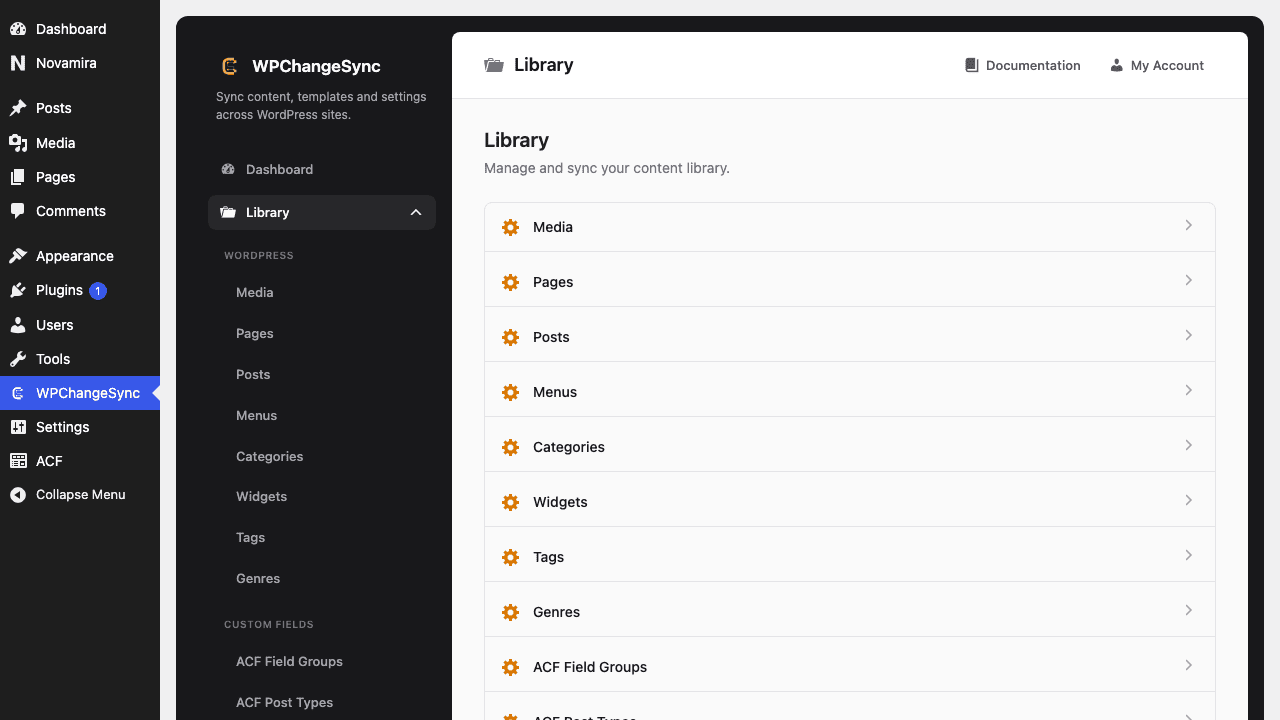
Open the relevant Library section Use Templates, Components, Media, Pages, Fields, Global Styles, or another integration section.
Select only intended items Use checkboxes to define the payload.
Inspect related data Use dependency/related-data preview where available before pushing builder structures.
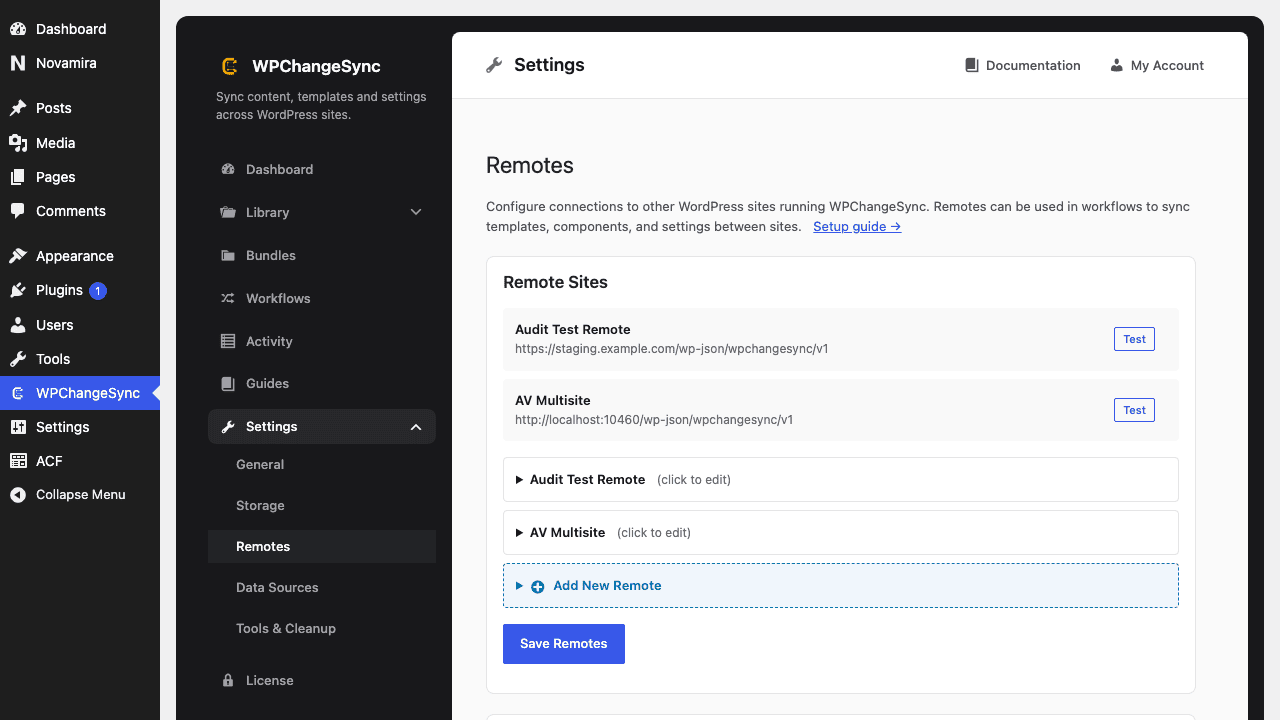
Choose the remote Select the target from the Push to dropdown.
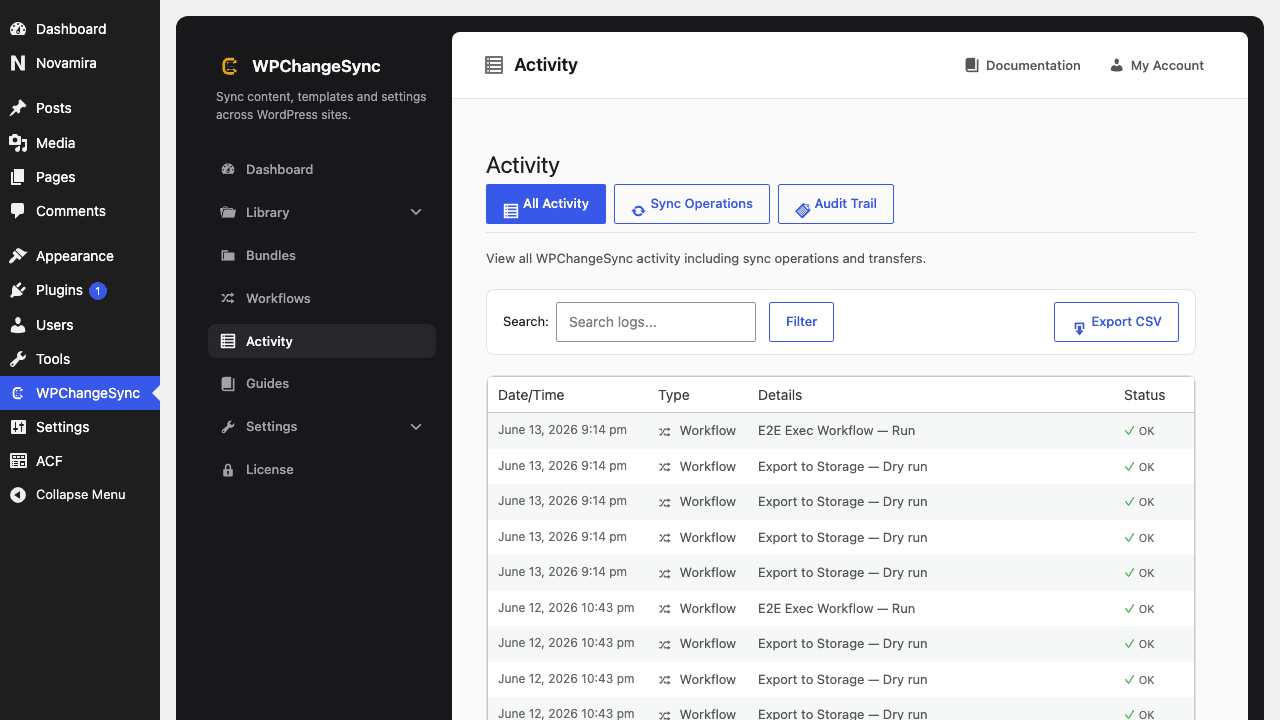
Push selected Confirm the action and inspect Activity afterward.
Verify target references Check that images, fields, global classes, and parent templates resolve on the remote.
Screenshots
Open a Library SectionChoose a Remote DestinationVerify on the Remote Site
Include dependencies as a release unit
A template rarely travels alone. Include media, field groups, global classes, variables, and CSS framework config when they are part of the change.
Code basis
The Library section reads per-site and network remotes, supports selected item IDs, and exposes related-data inspection for safer item-level pushes.
$pathstringRequired
Absolute path of the directory to write the snapshot to.
$modestringOptionaldefault: two-way
Sync direction — push, pull or two-way.
$gitboolOptionaldefault: false
When true, commits the snapshot to the repository after writing.