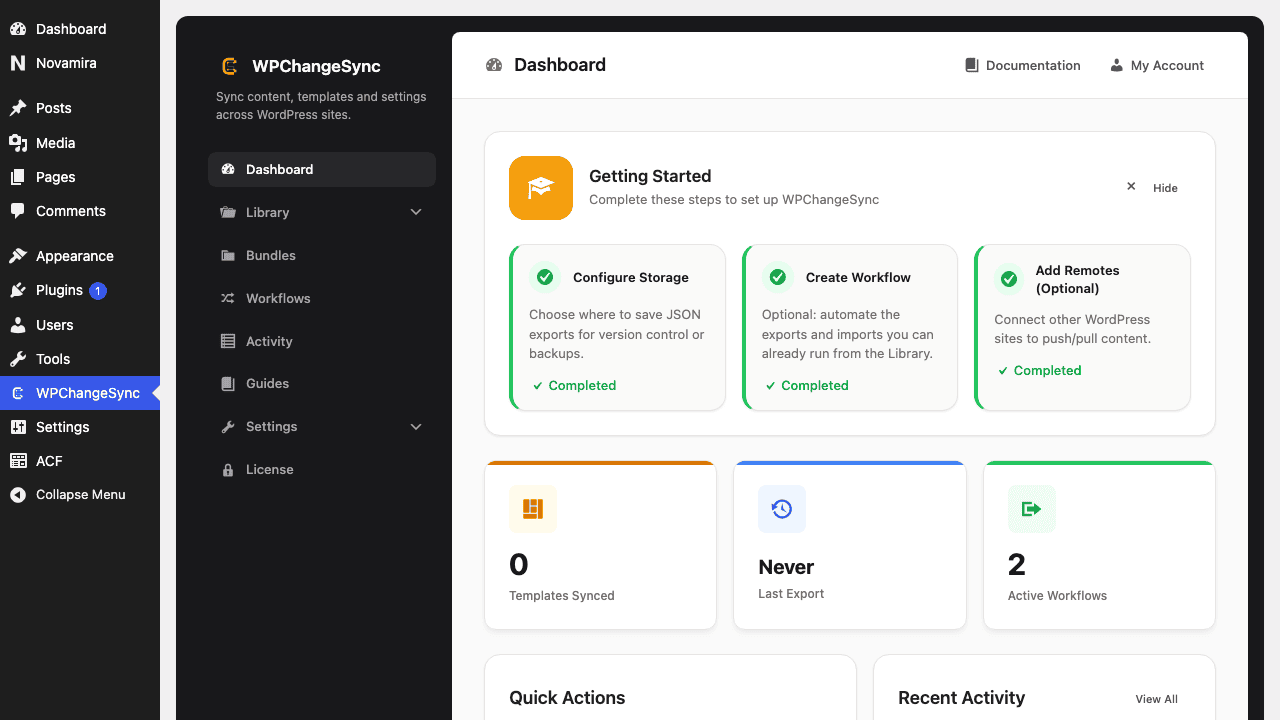
Use Activity, debug mode, PHP logs, and narrow re-runs to diagnose import failures.
Updated 5 June 2026·Task guide
Outcome
You identify whether the failure came from storage, permissions, PHP limits, missing handlers, malformed data, conflicts, or remote API sanitization.
Video walkthrough
▶
Video walkthrough coming soon.
The YouTube embed will appear here.
Risk level
Low. Diagnostic guide. Avoid retrying broad imports until the cause is isolated.
Before you start
Keep the failed payload available.
Enable debug mode temporarily if needed.
Know whether the failure occurred locally or on a remote target.
Steps
Check Activity first Look for the workflow run, import result, and sanitized error message.
Check target logs for remote imports Remote import errors are sanitized for callers; inspect the target site Activity and PHP logs.
Verify storage and permissions Confirm the JSON files exist and the web server can read/write required folders.
Reduce the scope Retry one integration or selected item to isolate the failing handler.
Use batch mode for large imports Timeouts and memory limits are often easier to avoid with smaller chunks.
Disable debug when done Do not leave verbose logging enabled in production.
Screenshots
Check File Permissions
wp wpchangesync status
wp wpchangesync integrations list
wp wpchangesync config get storage_path
Sanitized errors are intentional
The REST API avoids leaking internal details to remote callers. Look on the target site for the useful stack/detail.
Verify and recover
After completing this guide, verify the result in Activity and on the target site. Keep the pre-change export or backup until the release has been accepted. If anything looks wrong, stop further syncs, restore the affected item or integration from backup, and re-run with a narrower scope or safer conflict strategy.