Keep images, SVGs, and attachment references working after imports.
Updated 5 June 2026·Task guide
Outcome
Imported templates, components, and pages point to valid media on the target site, and existing matching media is reused when possible instead of duplicated.
Video walkthrough
▶
Video walkthrough coming soon.
The YouTube embed will appear here.
Risk level
Medium. Safe when reviewed, but missing media can break templates/components visibly.
Before you start
Include media in the same push/import when templates reference images.
Keep stable filenames and slugs across environments.
Know that attachment IDs differ between sites and must be remapped.
Steps
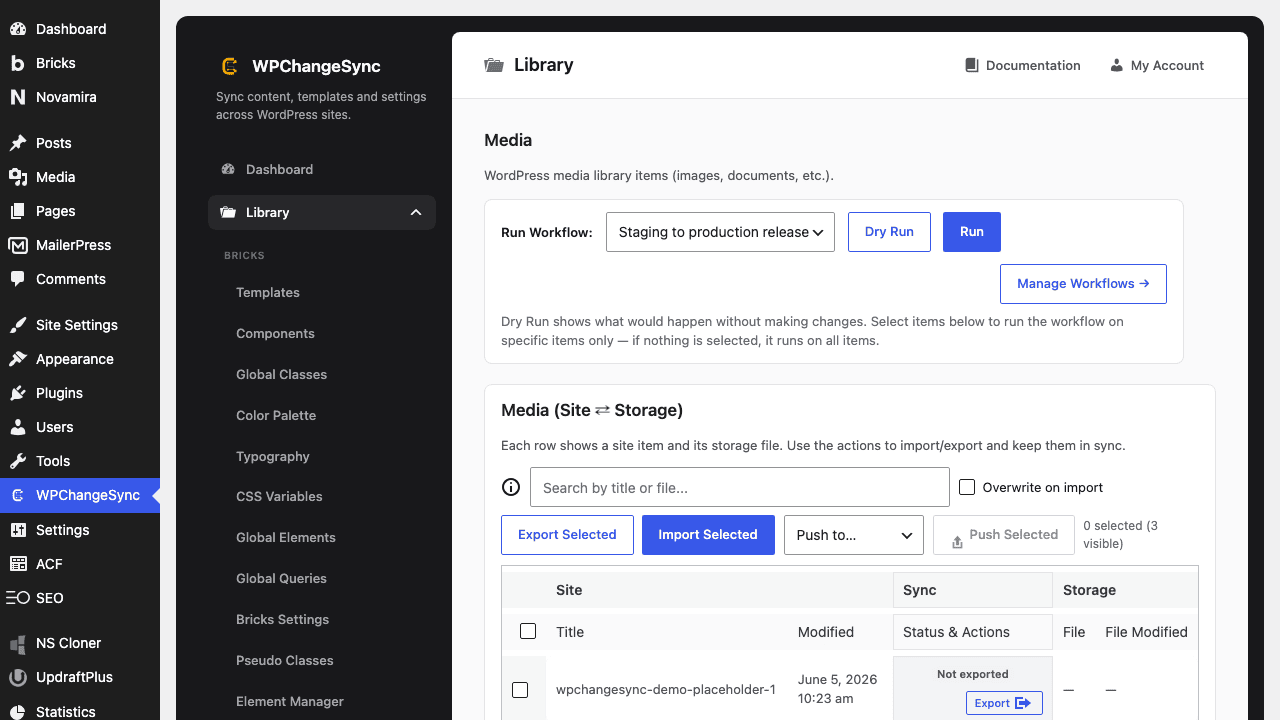
Include media with the release Do not push image-heavy templates without media unless the target already has matching assets.
Process media before components/templates Let the import build an ID map before builder JSON is remapped.
Use filename/slug matching Stable names help WPChangeSync reuse existing attachments.
Verify SVGs and inline images Open components/templates after import to ensure media IDs and URLs resolve.
Check for duplicates If duplicates appear, update WPChangeSync and re-run with matching path/slug data.
Screenshots
Duplicate Media After Import
Why SVGs can break
Bricks validates attachment IDs, not only URLs. A correct URL with a stale attachment ID can still fail until the media ID is remapped.
Code basis
WPChangeSync includes fixes for component element remapping, filename-based media fallback, and import ordering so media is processed before dependent structures.
$pathstringRequired
Absolute path of the directory to write the snapshot to.
$modestringOptionaldefault: two-way
Sync direction — push, pull or two-way.
$gitboolOptionaldefault: false
When true, commits the snapshot to the repository after writing.