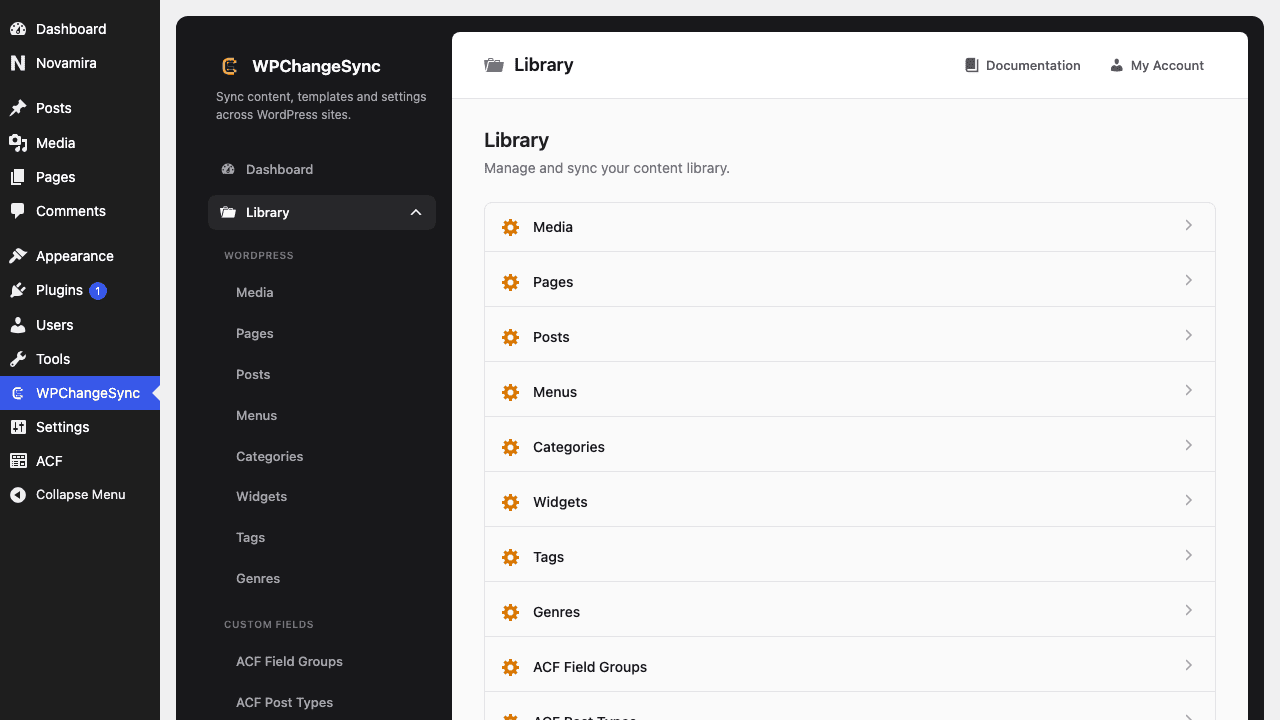
Run a workflow against selected Library items instead of the entire integration.
Updated 5 June 2026·Task guide
Outcome
A workflow operates only on the selected items from a Library table, giving you workflow safeguards without pushing or importing the whole integration.
Video walkthrough
▶
Video walkthrough coming soon.
The YouTube embed will appear here.
Risk level
Medium. Selected scope reduces risk; verify the selection and related data before execution.
Before you start
The workflow supports the selected integration.
You have selected the intended items in the Library.
You know whether related data should be included.
The workflow has been dry-run at least once with a safe scope.
Steps
Open the Library section Choose Templates, Components, Pages, Media, Global Styles, Fields, or another supported integration.
Select the items Use checkboxes to choose exactly what the workflow should operate on.
Choose workflow scope When prompted, choose selected items rather than all items.
Run dry run Confirm the selected payload and related-data behavior.
Execute and verify Run the workflow, then check Activity and the target site.
Screenshots
Select Items in the Library
Code basis
WPChangeSync added scope choice dialogs for Push Selected and selective workflow runs, including fixes so clearing the last checkbox clears the workflow selection.
$pathstringRequired
Absolute path of the directory to write the snapshot to.
$modestringOptionaldefault: two-way
Sync direction — push, pull or two-way.
$gitboolOptionaldefault: false
When true, commits the snapshot to the repository after writing.
Use this for small releases
Selective workflow runs are ideal for one component, one page group, or a small approved template set where a full integration push would be too broad.