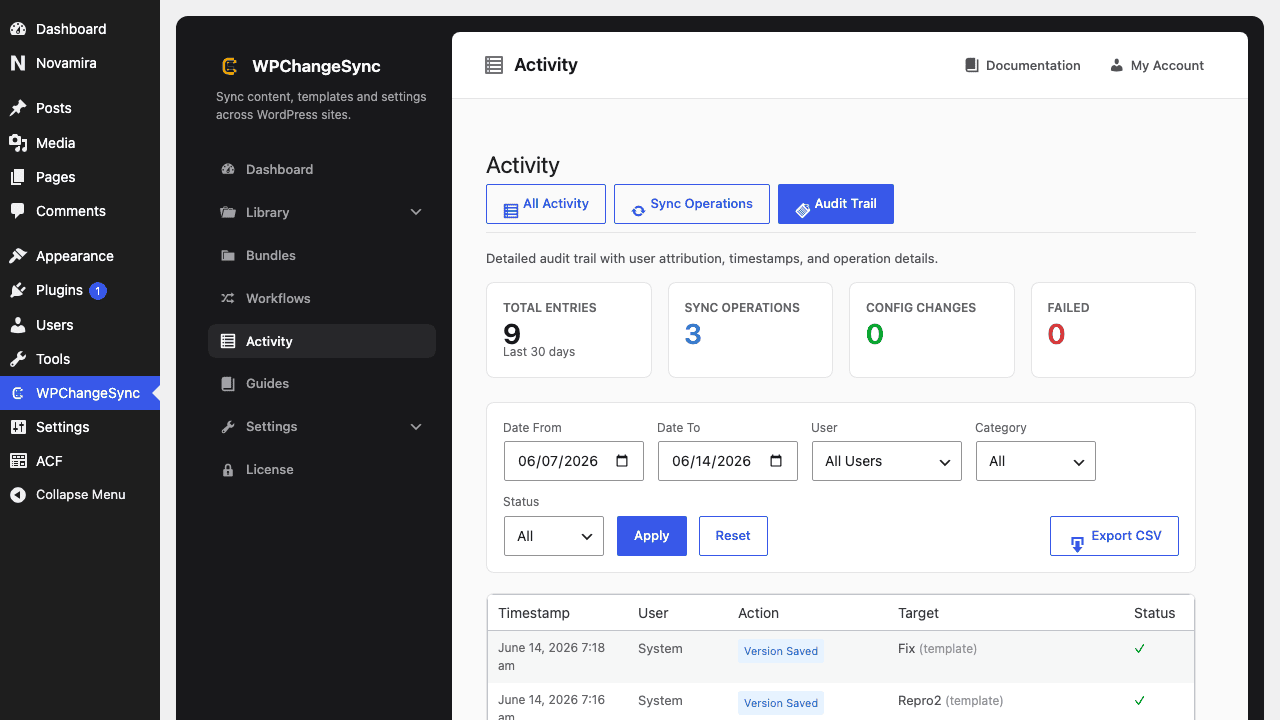
Use the audit log to answer who changed what, when, from where, and with what result.
Updated 5 June 2026·Task guide
Outcome
You can use the WPChangeSync audit trail to review workflow runs, template imports/exports, approvals, validation failures, version saves/restores, and other sync events.
Video walkthrough
▶
Video walkthrough coming soon.
The YouTube embed will appear here.
Risk level
Low. Mostly read/export behavior. Still handle exported logs according to privacy/compliance rules.
Before you start
Audit logging is available in WPChangeSync.
Retention policy is set appropriately for the site or network.
Compliance exports should avoid unnecessary personal data where required.
Steps
Open Activity/Audit Start from Activity when diagnosing or documenting a release.
Filter by workflow, actor, target, or date Narrow the log to the operation you care about.
Inspect result and context Look for status, message, remote ID, workflow ID, operation ID, and change summary.
Export if needed Use CSV or JSON export for client reporting or compliance evidence.
Respect retention Keep enough history for accountability without storing data indefinitely.
Screenshots
What is the Audit Trail?
Audit data model
WPChangeSync records to a wpchangesync_audit_log table with actor, action, target, context, result, changes summary, indexed timestamps, query helpers, export helpers, and retention cleanup.
$pathstringRequired
Absolute path of the directory to write the snapshot to.
$modestringOptionaldefault: two-way
Sync direction — push, pull or two-way.
$gitboolOptionaldefault: false
When true, commits the snapshot to the repository after writing.
Activity first, PHP logs second
For failed remote imports, Activity tells you the public result; the target PHP/debug log contains deeper internal details when errors are sanitized.