Guides/Sync Bricks Templates with Dependencies Sync Bricks Templates with Dependencies
Move Bricks templates together with components, global styles, fields, media, and referenced settings.
Updated 5 June 2026·Task guide
Outcome
A Bricks template arrives on the target site with the surrounding data it needs to render correctly.
Video walkthrough
▶Video walkthrough coming soon.
The YouTube embed will appear here. Risk level
Medium. Template moves need dependencies. Verify media, fields, globals, and components.
Before you start
- Identify whether the template uses components, media, custom fonts, icon sets, global classes, theme styles, CSS framework tokens, or ACF fields.
- Decide whether this is a selected push or a full integration export.
Steps
- Select the template
Open the Bricks Templates library section and select the template. - Preview dependencies
Inspect related data such as media, terms, fields, parents, and inline images where available. - Add supporting integrations
Include components, media, global classes, variables, custom CSS, fields, or framework settings. - Push or export
Move the full release unit, not just the template post. - Verify rendering on target
Open Bricks and the front end to confirm IDs and asset URLs remapped correctly.
Screenshots
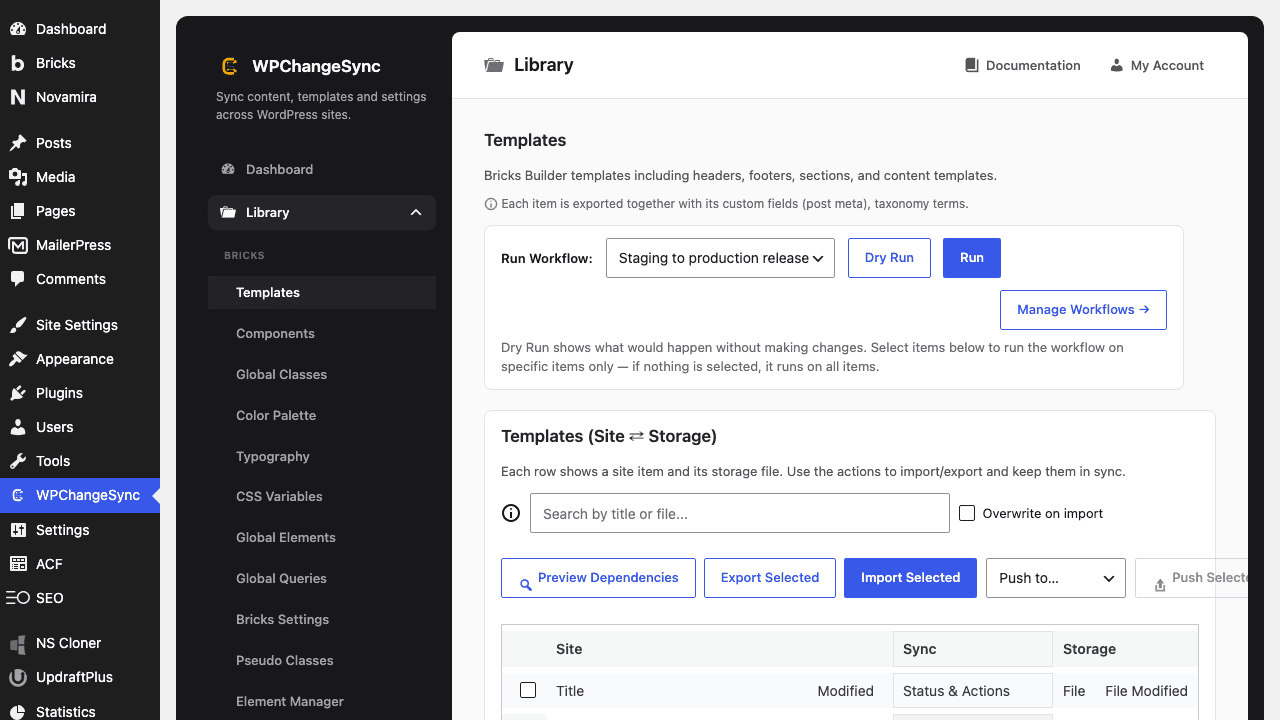 Template Versioning & Rollback
Think in release units
A reusable section may need template JSON, component JSON, media, fields, globals, and CSS. Bundle those together for fewer surprises.
Covered Bricks data
WPChangeSync includes Bricks handlers for templates, components, settings, variables, classes, theme styles, custom code/CSS, custom fonts, icons, breakpoints, sidebars, queries, and more.
$pathstringRequired
Absolute path of the directory to write the snapshot to.
$modestringOptionaldefault: two-way
Sync direction — push, pull or two-way.
$gitboolOptionaldefault: false
When true, commits the snapshot to the repository after writing.
