Configure WPChangeSync safely before your first export or remote sync.
Updated 5 June 2026·Task guide
Outcome
At the end of this guide WPChangeSync is activated, storage is writable, the main admin areas make sense, and you have completed a dry-run export before any risky import or remote push.
Video walkthrough
▶
Video walkthrough coming soon.
The YouTube embed will appear here.
Risk level
Low. Safe setup guide. Avoid production writes until storage, dry runs, and Activity checks are confirmed.
Before you start
WordPress 5.8+ and PHP 8.0+.
An administrator account.
A chosen storage location for JSON files.
Optional: a remote WordPress site with WPChangeSync installed and HTTPS enabled.
Steps
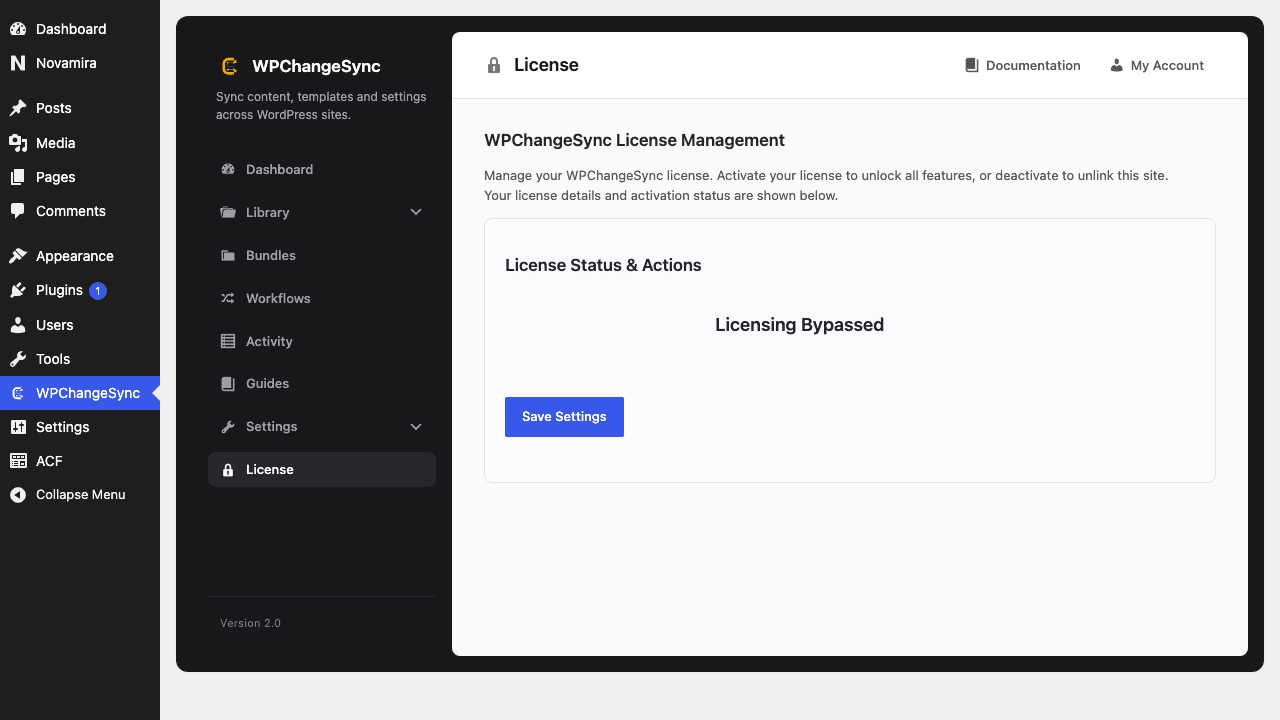
Activate and license WPChangeSync Install the plugin, activate it, and complete licensing if the build requires it.
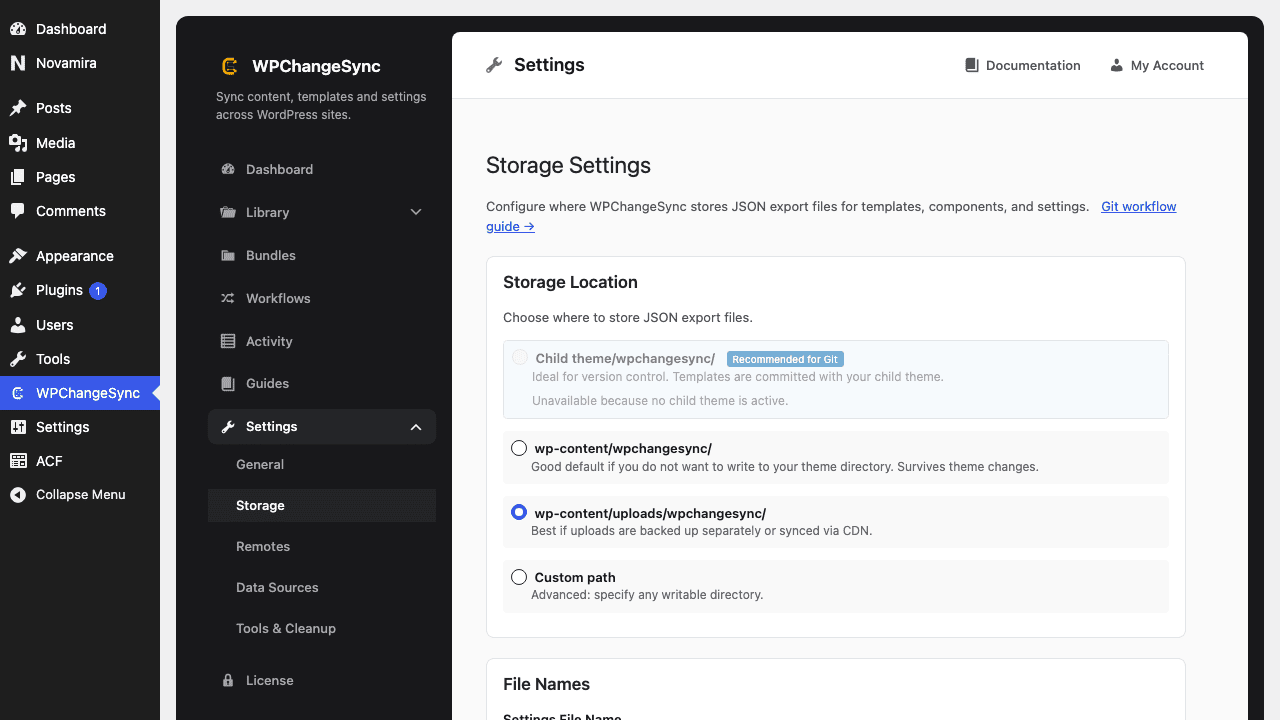
Choose storage Open Config -> Storage. Use theme storage for Git workflows, or uploads/plugin storage for local backups and multisite-friendly setups.
Check Library coverage Open the Library and confirm the expected integrations appear. Bricks sections appear only when Bricks data is available.
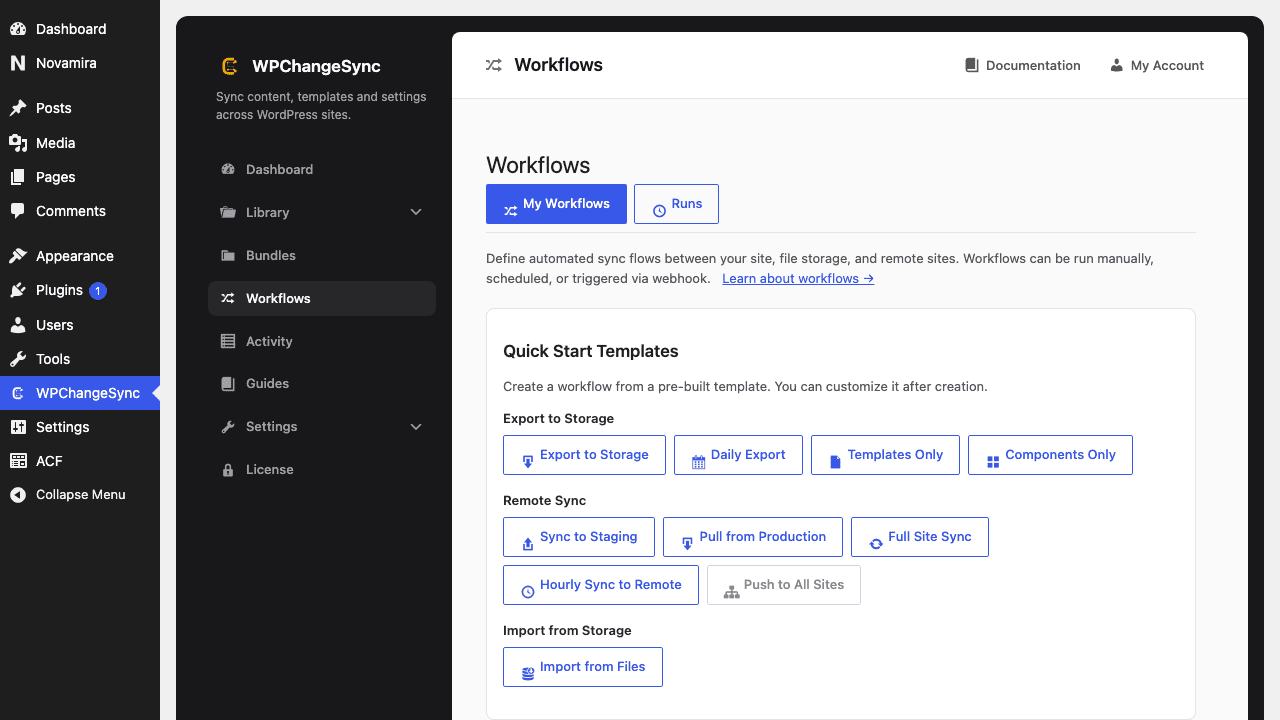
Create an export workflow Use the Export to Storage template or create a simple files export workflow.
Run a dry run Preview the workflow before writing files or touching a remote.
Inspect Activity Confirm the run is logged and that no warnings require action.
Screenshots
Activate Your LicenseConfigure StorageCreate Your First Workflow
wp wpchangesync status
wp wpchangesync integrations list
wp wpchangesync workflow list
Do this before remote sync
Create one clean export and commit/review it before connecting production remotes. It gives you a baseline when debugging later.
Verify and recover
After completing this guide, verify the result in Activity and on the target site. Keep the pre-change export or backup until the release has been accepted. If anything looks wrong, stop further syncs, restore the affected item or integration from backup, and re-run with a narrower scope or safer conflict strategy.