Docs/Workflows

Workflows

Build repeatable sync jobs with dry runs, approvals, selected scope, notifications, and maintenance windows.
Updated July 2026·WPChangeSync 2.1

Workflow engine

A workflow is a named, repeatable sequence of sync steps: export to storage, import from storage, push to a remote, pull from a remote, or several of those in order. You run it by hand, on a schedule, or from a webhook, and a Runs tab keeps the history of every execution.

Because the steps are saved rather than improvised, a release becomes something you can rehearse. Every workflow supports a dry run that reports exactly what would change without writing anything, and individual steps can require approval or put the site into maintenance mode while they run.

Notifications close the loop: choose whether to be told when a step needs approval, when a run finishes, or when one fails, and send that by email, webhook, or both. Slack and Discord webhook URLs are detected and formatted automatically.
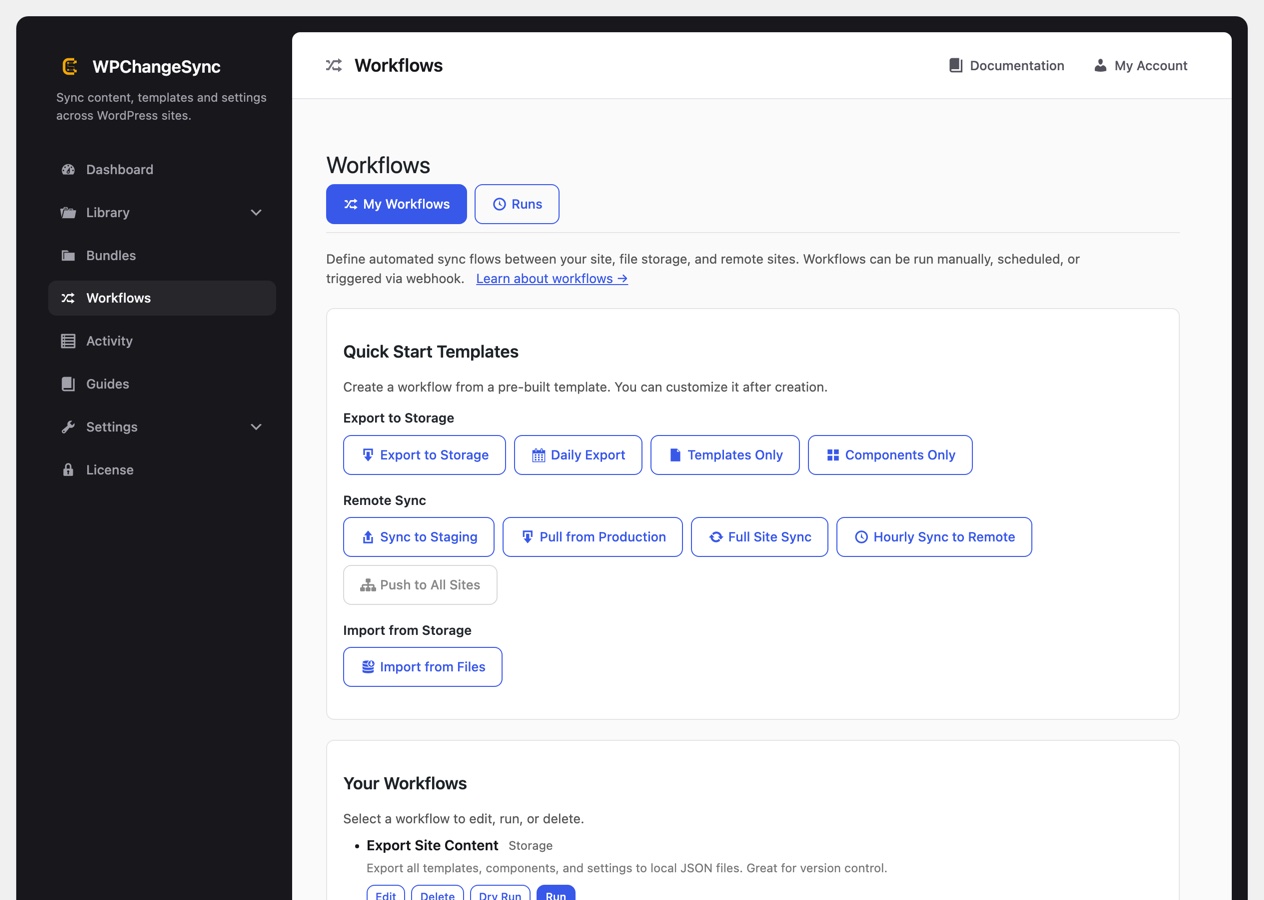
The Workflows screen with quick start templates and a saved workflow
The Workflows screen. Quick Start Templates create a working workflow you can then customise.

Webhook triggers. Beyond running a workflow by hand or on a schedule, you can generate a trigger URL for it: edit the workflow and use Generate Webhook URL. The URL carries its own token for authentication, so a deploy pipeline can fire a sync at the right moment by calling it. That is the usual way to hang WPChangeSync off CI rather than off WP-Cron.

Workflow controls

  • Dry run mode for previews before writes.
  • Approval gates for controlled production changes.
  • Per-step maintenance mode around risky operations.
  • Notifications and activity records for accountability.
  • Selected integration and selected item scope.
  • Optional Include ACF Field Groups on export and push steps, so field definitions travel with the content.

Approvals and scheduling. An approval is bound to the exact step it was granted for, so editing or reordering a workflow while an approval is pending can never apply that approval to a different step. Approval deadlines are enforced, and a scheduled workflow will not start another run while an earlier one is still waiting for approval.

Common scenarios

You rarely need to start from scratch. Quick Start Templates build a working workflow you can then edit:

  • Export to Storage, plus Daily Export, Templates Only, and Components Only.
  • Remote Sync: Sync to Staging, Pull from Production, Full Site Sync, Hourly Sync to Remote, and Push to All Sites.
  • Import from Storage: Import from Files.

From there, the patterns people actually run are staging to production releases, production content pulled back down to staging, Git-backed version control where an export workflow feeds your repository, approval-gated production deploys, selective pushes of only the items that changed, multisite rollouts, and scheduled or batch-oriented runs for large sites.

For anything that touches production, the safe shape is the same: dry run, read the result, then run it, and consider pushing templates without settings so you do not overwrite production configuration.

wp wpchangesync workflow list
wp wpchangesync workflow show staging-to-production
wp wpchangesync workflow run staging-to-production --dry-run
wp wpchangesync workflow templates

Reference checklist

Workflows can be driven from the admin UI, created from the built-in templates and guides, exported and imported as JSON configs so the same workflow exists on every site, and run from the command line with wp wpchangesync workflow. CLI exit codes are meaningful, so a failed run stops a deploy rather than passing silently. Network-level workflows are editable on multisite.

Item-scoped runs

A workflow does not have to act on everything it could touch. Tick the items you care about in any Library section, then pick a workflow in the Run Workflow card and choose Dry Run or Run.

When you have items selected, a scope dialog appears and tells you how many, for example You have 3 items selected. What should this workflow run on? You then choose:

  • The selected items, so only those are processed.
  • All items, which ignores the selection.
  • Cancel, to back out.

The run modal then shows the scope in its title, such as My Workflow (Execute, 3 selected items), so there is no ambiguity about what was processed. If nothing is checked when you press Run, the workflow runs on everything and no dialog appears, which keeps older habits working unchanged. The selection is honoured at the step level, so a scoped run cannot quietly widen on a later pull step.