Install, activate, and verify WPChangeSync before the first export.
Updated July 2026·WPChangeSync 2.1
Install the plugin
Install WPChangeSync like any other WordPress plugin, activate it, then open the WPChangeSync menu. A first-run onboarding wizard points you at the three things that matter first: your licence, your storage location, and your first workflow.
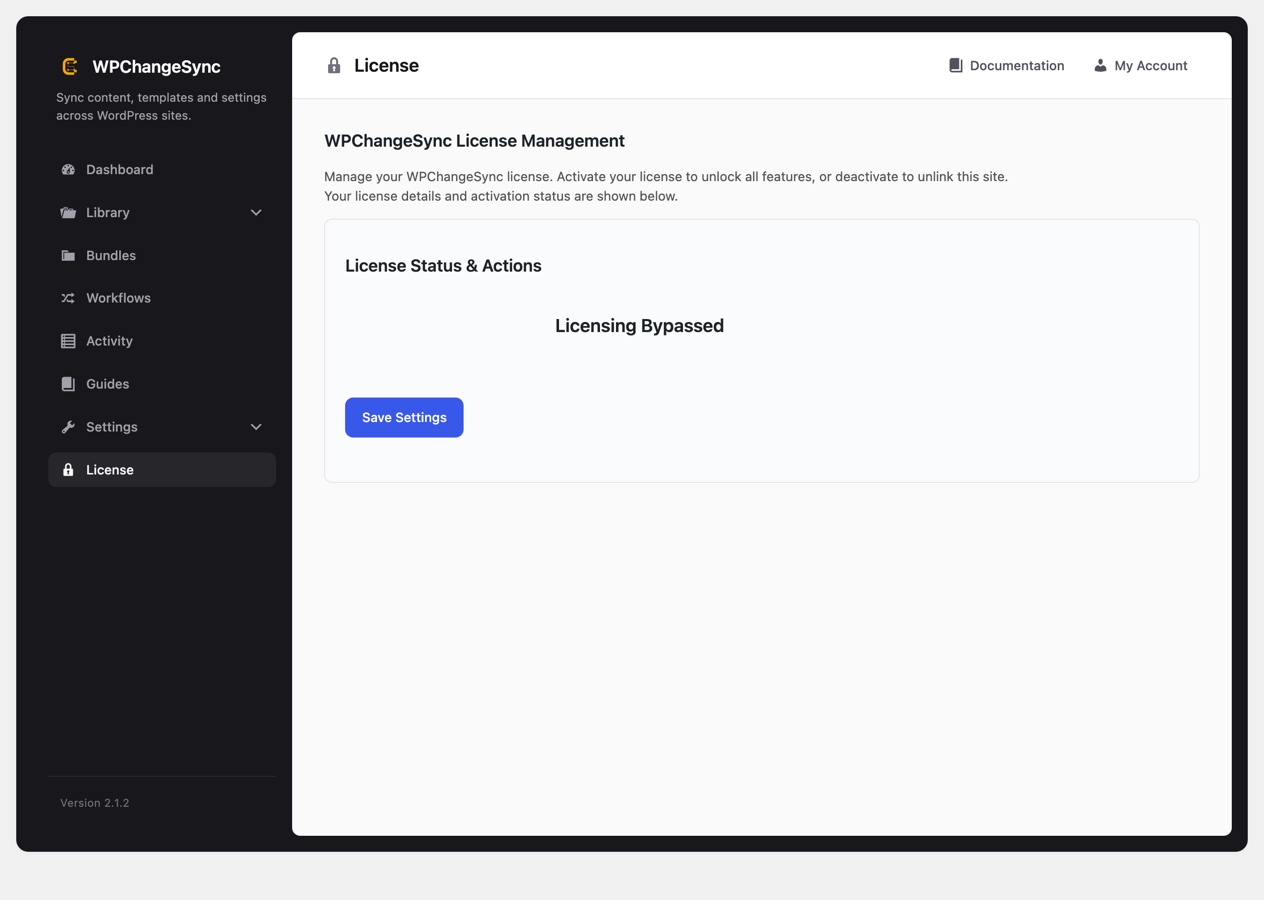
Activate the licence under License. On multisite you can license the network once instead of site by site, and subsites then report that they are licensed via the network.
The License screen. On multisite, a network licence covers every subsite.
The plugin runs standalone or alongside Bricks. On multisite installs, network-level batch and remote screens become available where enabled.
Minimum environment
WordPress 5.8 or newer.
PHP 8.0 or newer.
An administrator account with the capability to manage options.
Writable storage for JSON exports, backups, and activity data. If the folder does not exist yet, the Storage screen offers a Create Directory button.
HTTPS on both sites for remote transfers. WPChangeSync refuses insecure connections, and drops credentials rather than sending them if a remote redirects HTTPS to plain HTTP.
An Application Password on the receiving site, created by an admin-capable account under Users, then Profile. This is not the account login password.
Bricks Builder is optional. Note that some hosts block /wp-json/ by default, which will stop remote sync until the REST API is reachable.
Remote sync requires HTTPS
The REST transfer layer is hardened around authenticated requests and expects secure remote communication. Use Application Passwords for remote site access and avoid exposing import endpoints publicly.
First verification pass
After activation, walk these screens once:
Dashboard for overall status and whether the plugin considers itself configured.
Settings, then Storage, and confirm Current Status shows a green OK. If the folder is missing, use Create Directory.
Library to see which integrations were detected. The panel listing integrations detected on this site also explains why anything is hidden, usually because the plugin it belongs to is not installed.
Activity, which should be empty on a fresh install and is where every later operation appears.
Guides for the in-plugin walkthroughs.
If Bricks is not installed, the Bricks-only Library sections should be hidden rather than sitting there empty.
wp wpchangesync status
wp wpchangesync integrations list
wp wpchangesync config show --format=table
Reference checklist
From the command line, wp wpchangesync status reports configuration and storage health, and wp wpchangesync integrations list shows what is detected and active. Both are worth putting in a deploy script so a misconfigured site fails fast instead of silently syncing nothing.