Docs/Migration Transforms

Migration Transforms

Updated July 2026·WPChangeSync 2.1

What Migration Transforms do

Migration Transforms let two differently-built sites sync even when their content is not shaped the same way. A transform is a reusable profile that reshapes content on import, so a field named one thing on the source can land correctly on a target that names it something else.

Create and manage profiles under Settings, then Migrations. A profile applies everywhere content is imported: file import, remote pull, workflows, and WP-CLI.

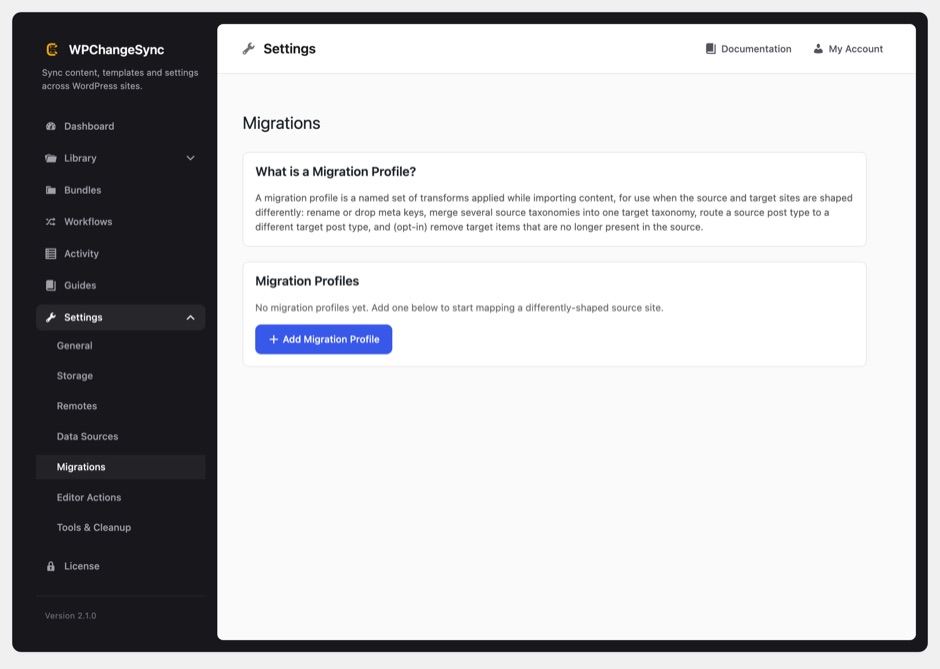
A migration profile reshapes content from a differently-built source site so it matches the target site, with a dry-run preview before running.
A transform profile reshapes content from a differently-built source so it lands correctly on the target. Preview as a dry run before you commit.
The WPChangeSync Migrations settings screen for transform profiles
The Migrations settings screen, where you build and preview transform profiles.

What you can transform

A single profile can combine any of these transforms:

  • Rename or drop custom-field keys: map a meta key to a different name on import, or remove it entirely.
  • Merge terms across taxonomies: fold terms from several taxonomies into one, with an existing-terms-only mode so you never create stray terms.
  • Remap attachment IDs: rewrite attachment IDs stored inside gallery fields and custom fields so they point at the right media on the target.
  • Route post types: import a source post type into a different target post type.
  • Remap relationship fields: rewrite relationship fields that store post IDs so linked content stays connected across sites.
  • Deletion propagation: optionally remove content on the target that was removed at the source. It trashes by default and never hard-deletes, it is reference-safe, and it shows a dry-run preview before anything is removed.

Deletion propagation safety. Deletion is capped, so a misconfigured profile cannot wipe a small site, and you are told when the cap blocks a run. Permanently deleting instead of trashing is a separate, deliberate choice that has to be enabled through an explicit bulk override checkbox on the profile. Remote pulls skip deletion propagation entirely, because a pull never reads local storage and stale files could otherwise remove live content.

Preview before you run

You can preview a profile against real storage files inside the profile editor before running it, so you can see exactly how content will be reshaped. Deletion propagation has its own dry-run preview, and after a run an admin notice reports precisely what was removed.

Deletion is capped by a hard ceiling, so a misconfigured profile can never wipe a small site by accident.

Source IDs keep galleries and relationships connected

Imported media and posts remember the IDs they had on the source site. That sounds like a detail, but it is what makes multi-pass imports safe: you can import media first and posts second, in separate runs, and galleries and relationship fields still reconnect to the right attachments and posts.

Without it, an import that arrives out of order leaves gallery fields pointing at nothing, because the attachment it referenced did not exist yet at the moment the post was written. Source IDs let the post importer resolve those references against media that is already there, so import media first, or simply import the post again after its media arrives. A post imported before its media stays unlinked until that re-import.

Cross-site media portability

Posts can carry their images between sites. An Include Media Files option bundles each post's featured and inline images with the export. On import, WPChangeSync reconnects the featured image, from the bundle, an existing attachment matched by filename, or a sideload from the source site, and rewrites inline <img> URLs and wp-image-<id> classes to the destination's attachments. Media is imported before posts so everything links up in one pass, and older exports without media remain fully compatible.

ACF media fields are covered as well. Image, gallery, and file fields have their attachment IDs remapped to the destination media, including fields inside repeaters. Only those genuine media types are touched, so relationship, number, date, and text fields are left exactly as they are.

Network-wide profiles

On multisite, define a profile once under Network Admin, then Migrations and apply it across the network, instead of recreating the same field renames on every subsite.

Profiles behave the same on every environment because the writes underneath them are environment-independent: global-styles and storage writes are atomic, and stored URLs are portable rather than hardcoded to one domain. A profile you tested on staging therefore does the same thing on production.

Manage migrations from WP-CLI

Migration profiles can be created, listed, previewed, and run entirely from the command line with wp wpchangesync migration, which is what makes them usable inside a deploy pipeline rather than only by hand.

Profile IDs look like mig_1699999999_abc123, and every command accepts --network on multisite so you can target network-level profiles. Preview first: the same dry-run preview available in the profile editor can be run from the CLI against real storage files, so a pipeline can check a transform before it applies one.

Terminal
wp wpchangesync migration list
wp wpchangesync migration get mig_1699999999_abc123
wp wpchangesync migration create --file=profile.json
wp wpchangesync migration preview-deletions wordpress-posts
wp wpchangesync migration enable mig_1699999999_abc123