Docs/Editor Actions

Editor Actions

Updated July 2026·WPChangeSync 2.1

Sync from the post editor

Editor Actions add configurable Sync buttons directly to the WordPress post editor, in both the block editor and the classic editor. From the post you are editing you can push it to another site, pull the latest version back, run a workflow scoped to just that post, or export it to storage, without opening the WPChangeSync Library.

This is the fastest way to move a single page or post between environments. A designer can push a finished landing page to production, or an editor can pull the latest copy down to staging, in one click and with a safety net.

From the post editor, one Editor Action pushes or pulls the post to a remote site, runs a scoped workflow, or exports it to storage.
From the post editor, one click pushes or pulls the post to a remote, runs a scoped workflow, or exports it to storage.
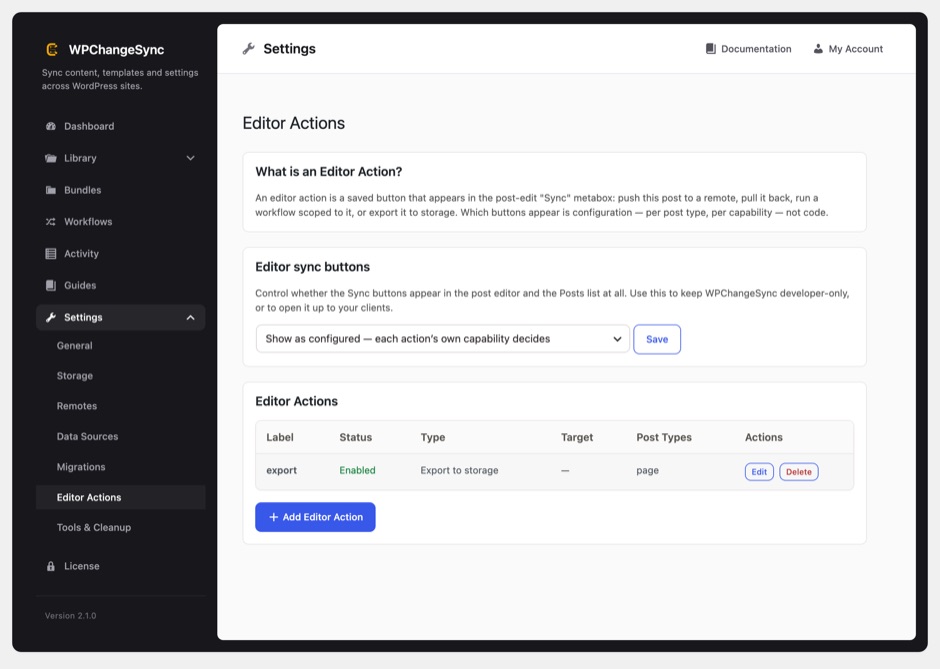
The WPChangeSync Editor Actions settings screen
The Editor Actions settings screen, where you define which Sync buttons appear in the post editor.

Configure your editor buttons

Define which buttons appear under Settings, then Editor Actions. Each button maps to one action:

  • Push to a remote sends this post to a connected site.
  • Pull from a remote replaces the local post with the version on the remote. WPChangeSync takes an automatic backup before it pulls, so you can roll back.
  • Run a workflow runs any saved workflow scoped to this single post.
  • Export to storage writes this post to your JSON storage location.

When exactly one remote is connected, a zero-config Push to {site} button appears automatically, so there is nothing to set up. On multisite, actions can target network sites as well.

Push and export actions can optionally include ACF Field Groups, bundling the field group definitions the post depends on. It is off by default, so a push stays a push unless you ask for the definitions, and on the destination a group whose key already exists is left untouched.

Sync status and safe overwrites

Each Sync button shows a live status indicator so you know where the post stands before you act:

  • In sync: the local post matches the target.
  • Target newer: the copy on the target is newer than yours.
  • Not on target: the post does not exist on the target yet.

If you are about to overwrite a copy that is newer than yours, WPChangeSync asks you to confirm first. An unsaved-changes guard stops you pushing stale content, and every push or pull is recorded in a per-post history so you can see what moved and when. Status checks are cached, so the editor stays fast.

Bulk push and the Gutenberg panel

Beyond a single post, you can push in bulk from the Posts list using the row action or the bulk action to send several posts at once. A Gutenberg pre-publish and sidebar panel puts the same controls next to the Publish button, and you can pull a single item by slug.

Authors are preserved across sites. On import, WPChangeSync matches the author by login or email on the destination, so a post keeps its byline instead of defaulting to the importing user.

Visibility and access control

A single visibility switch governs the whole editor UI, the metabox, the block-editor panel, and the Posts-list actions together:

  • Show as configured: buttons appear as you defined them.
  • Administrators only: a developer mode that hides the UI from everyone else.
  • Off: no editor actions at all.

This is safe for client sites. Editor push and pull is gated per remote by an Allow editor Push and Pull switch that is off by default, and individual actions respect per-action capabilities. On multisite, a stricter network setting always wins over a more permissive per-site one.

Posts carry their images

When you push or export a post, an Include Media Files option bundles the post's featured image and inline images with it. On the destination, featured images reconnect and inline image URLs, along with their wp-image-<id> classes, are rewritten to the target's own attachments, so the post looks right on the other site in a single pass. Older exports without media keep working unchanged.

For the full detail on media handling and reshaping content between differently-built sites, see Migration Transforms.

Custom-field images travel too. ACF image, gallery, and file fields store a bare attachment ID, so those IDs are remapped to the destination media library alongside the featured image, including fields inside repeaters. Remapping is deliberately limited to genuine media field types, so a relationship, number, date, or text field is never rewritten. Keep in mind that ACF only displays a synced value when a matching field group exists on the target, so either include the field groups or share them through ACF local JSON.