Docs/Storage & Configuration

Storage & Configuration

Configure JSON storage, environment-specific options, and sync behavior.
Updated June 2026·WPChangeSync 2.0

Storage model

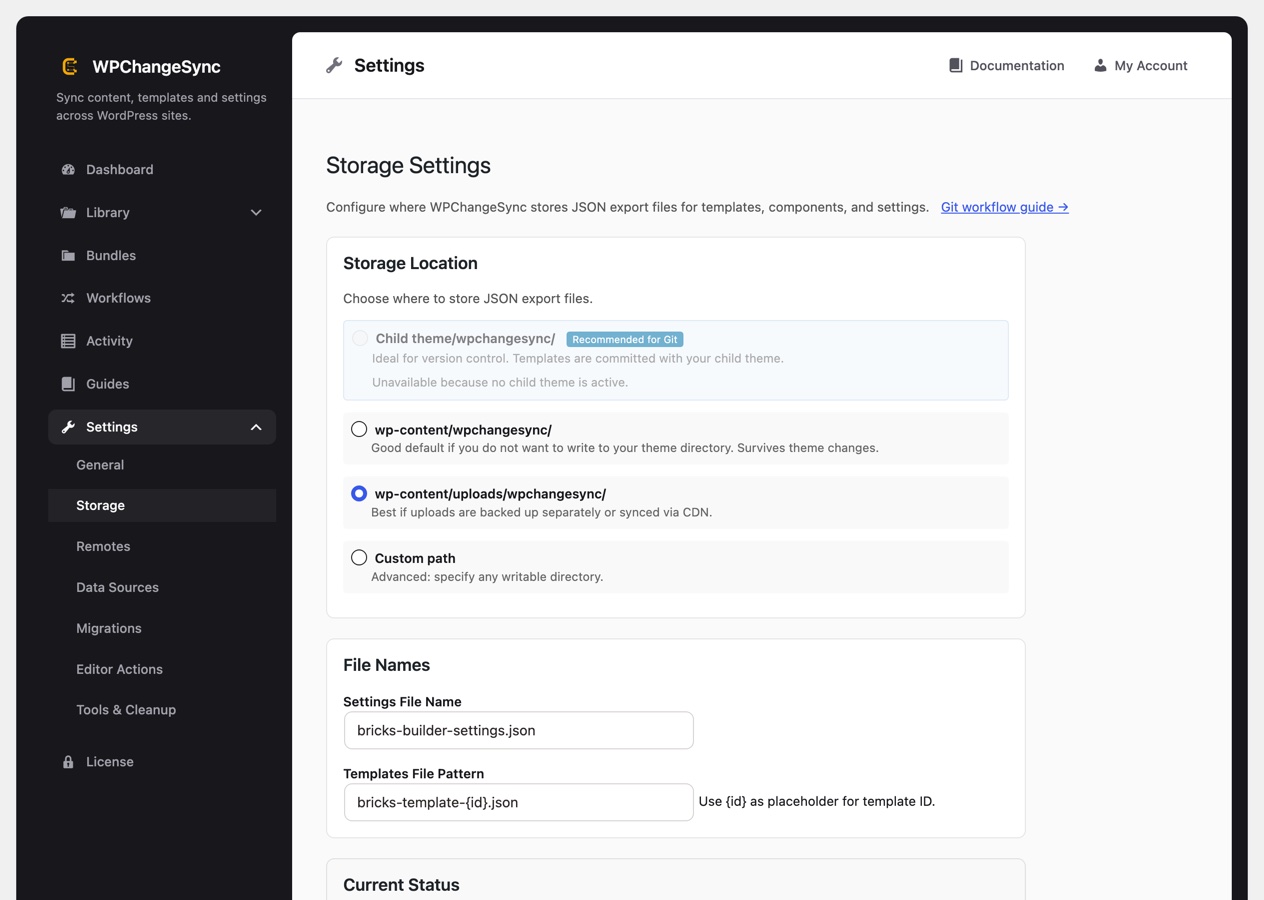
WPChangeSync writes exports as structured, human-readable JSON so changes can be reviewed, committed, and moved between environments. Integration manifests define what each file contains and where it lives. You choose the storage location in Settings → Storage:

  • Child theme — ideal for version-controlling site config with Git.
  • Uploads folder — simple backups without touching the theme.
  • Custom path — a shared location for multi-site or CI workflows.

File naming (settings filename, templates filename pattern, JSON subdirectory) and an excluded-options list (for example, license keys) are configurable too.

Configuration areas

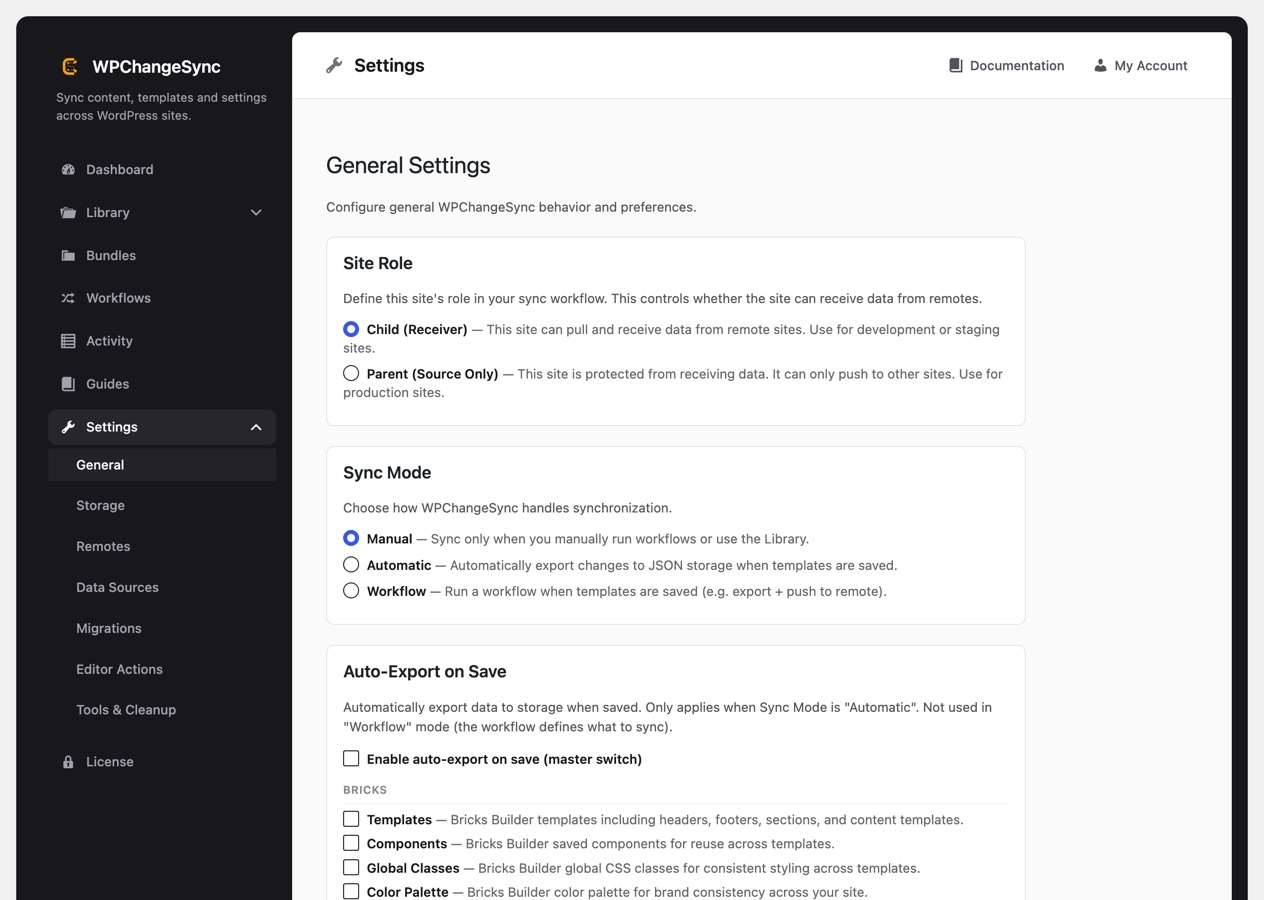
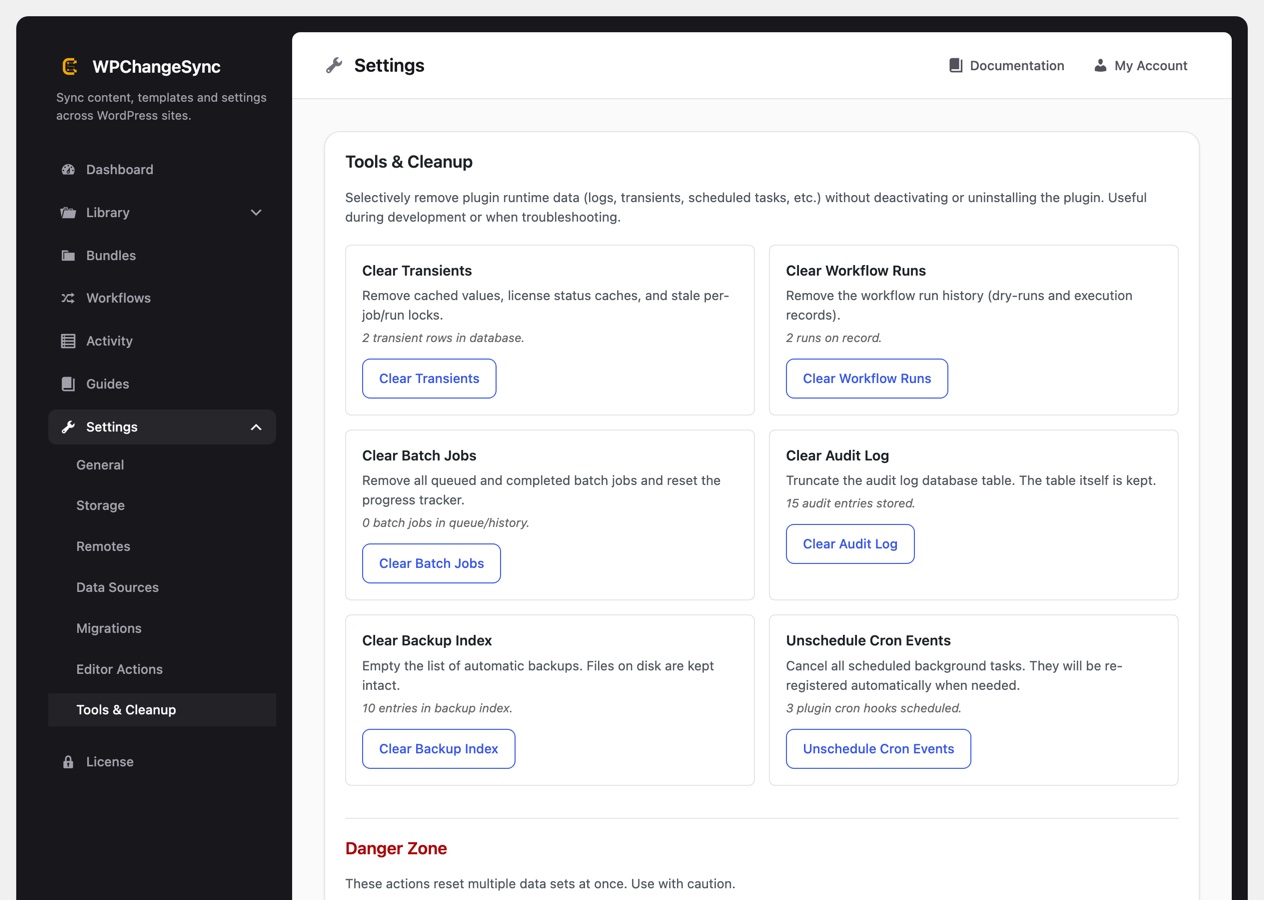
General controls default sync behaviour — site role, sync mode, integration visibility, and your custom data sources. Storage controls where exported JSON and backup data live. Remotes & Groups store authenticated targets for push/pull. Tools holds housekeeping utilities, including a clean-slate reset.

Sync modes

Storage sync runs in one of four modes, set in Settings → General:

  • Manual only — no automatic actions (the default).
  • Automatic import only — import from the storage path when its files change.
  • Automatic export only — export current data to the storage path (for example, on template save).
  • Full automatic sync — import then export. Powerful, but use with caution.

File-based syncing works on its own; workflows are optional on top of it.

Keep secrets out of Git

Remote credentials, tokens, Application Passwords, webhook tokens, and license values should stay in WordPress options or environment-specific config — never committed to a shared repository. Add sensitive option keys to the Excluded options list so they are left out of exports.

Export to storage, inspect the JSON diff, commit the intended changes, then import or push only after review. For broad content moves, combine dry runs with a deliberate conflict strategy before touching production.

Terminal
wp wpchangesync config get storage_path
wp wpchangesync config set conflict_resolution skip
wp wpchangesync settings export --file=wpchangesync-settings.json

Tools and clean-slate reset

The Settings → Tools tab holds housekeeping utilities, including Delete All Plugin Data — a true clean-slate reset that removes WPChangeSync's options, tables, and activity data, and optionally the exported JSON files too. Use it to start fresh or before uninstalling.

Reference checklist

Keep storage paths writable, secrets outside Git, and environment-specific remote settings separate from exported JSON payloads.